Close Menu
  • Home
  • UNSUBSCRIBE
  • News
  • Lifestyle
  • Tech
  • Entertainment
  • Sports
  • Travel
Facebook X (Twitter) WhatsApp
Trending
  • George Kittle’s wife shares live reaction to Achilles injury
  • ‘The scientific cost would be severe’: A Trump Greenland takeover would put climate research at risk
  • Headlines Across OC as Angel Stadium Sale Debate Intensifies
  • Anti-Islam activists clash with pro-Muslim counter-protesters in Dearborn, Michigan
  • Best monitor deal: Get the 45-inch LG Ultragear gaming monitor for its lowest price yet
  • Slovakia U21 0 – 4 England U21
  • 13 Top Sleep Products That Transform Your Bedtime Routine for Better Rest
  • Firefighters rescue puppies from burning house
Facebook X (Twitter) WhatsApp
Baynard Media
  • Home
  • UNSUBSCRIBE
  • News
  • Lifestyle
  • Tech
  • Entertainment
  • Sports
  • Travel
Baynard Media
Home»Tech»How to use Google Meet’s new AI makeup tool
Tech

How to use Google Meet’s new AI makeup tool

EditorBy EditorOctober 17, 2025No Comments3 Mins Read
Share Facebook Twitter Pinterest LinkedIn Tumblr Reddit Telegram Email
Share
Facebook Twitter LinkedIn Pinterest Email

Google Meet has a new AI-powered makeup filter that lets you apply lipstick without opening a real tube.

Launched on Oct. 13, the tool is an expansion of the video call platform’s “Touch Up” feature added in 2023. Similar to the AR beauty and makeup lenses on social media sites like TikTok, Instagram, and Snapchat, and the myriad virtual try-on platforms around, Google Meet’s new feature allows users to add basic makeup filters that mimic foundation, blush, lipstick, mascara, and eyeshadow.

SEE ALSO:

TikTok beauty filters can be super realistic—unless you’re a person of color

In a blog post, Google demonstrated the tool in the GIFs below, and from testing it myself, I have to say the facial mapping is impressively sticky.

Mashable Light Speed

On desktop:


Credit: Google Meet

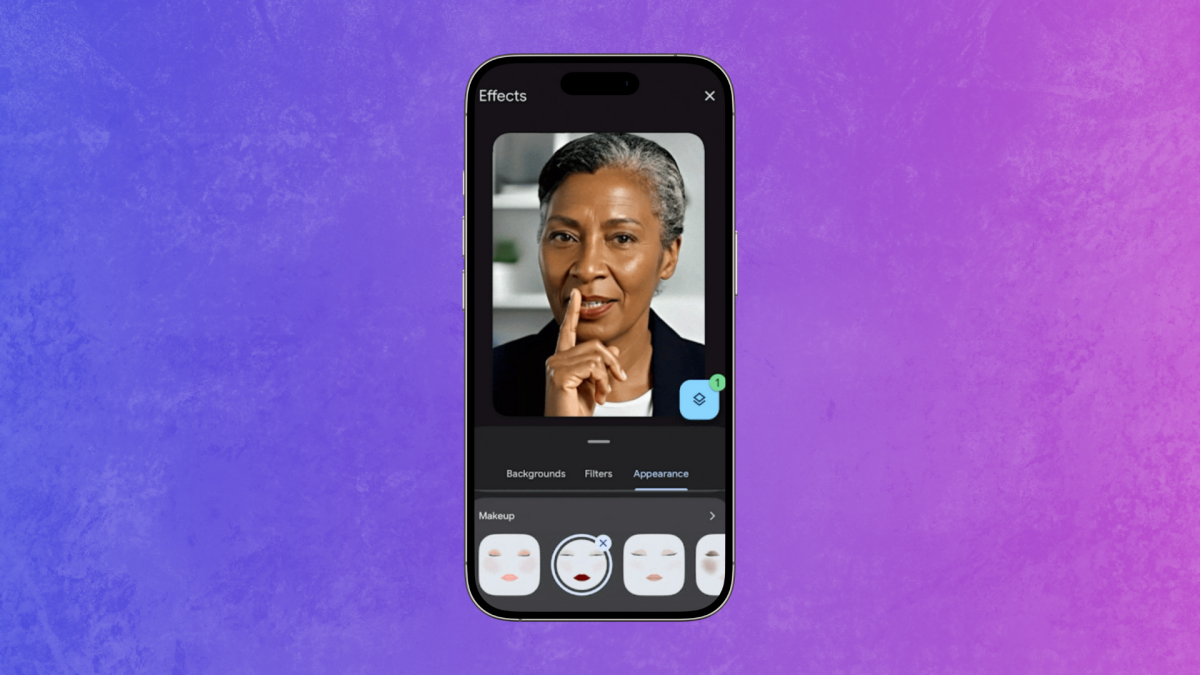
On mobile:

A GIF of a person testing the Google Meet makeup filter.


Credit: Google Meet

There are 12 studio makeup options to choose from, titled things like “rosy pink,” “cat eye,” “goth chic,” and “dewy fresh.” But how do you find the makeup tool? Here’s a step-by-step guide.

How to use Google Meet’s new AI makeup tool

What You Need

  • Google Meet on desktop
  • laptop
  • or smartphone

Step 1:
Open Google Meet calendar event.

Don’t join yet. Instead, click the icon showing a person in a frame with a small star in the right corner.

A screenshot of Google Meet showing the screen before login.


Credit: Google Meet

Step 2:
Click “Appearance.”

It’s sitting beside “Background” and “Filters.”

Google Meet's settings for Background, Filters, and Appearance.


Credit: Google Meet

Step 3:
Scroll down to the “Makeup” section and click on each face icon to try on each style.

Here, you can pick from 12 options, which vary from heavy to light.

Google Meet's makeup tool.


Credit: Google Meet

Step 4:
Click your choice of makeup, and make sure your camera is on to see it applied.

Tap the camera icon on the screen beside the microphone/mute button to turn it on and off.

Step 5:
If you want to remove the makeup filter, simply tap the highlighted option again.

Step 6:
Press the X in the top right corner of the window to return to the Google Meet lobby and click “Join now.”

Step 7:
If you want to turn the makeup tool on or off during the meeting, tap the three dots beside the red phone button.

Google Meet toolbar


Credit: Google Meet

Step 8:
Then, click “Backgrounds and effects” and repeat the above process.

Google Meet


Credit: Google Meet

For more hacks on how to tinker with your Google Meet settings, Mashable’s got you covered.


Featured Video For You


Google’s Pixel 10 Pro Fold Is Here


Source link

Share. Facebook Twitter Pinterest LinkedIn Tumblr Email
Previous Article'Looking forward to spending some time together' | McIlroy and Tendulkar hook up in India
Next Article Lia Thomas responds to critics after UPenn removes swimming records
Editor
  • Website

Related Posts

Tech

Best monitor deal: Get the 45-inch LG Ultragear gaming monitor for its lowest price yet

November 19, 2025
Tech

Zoox driverless cars now in San Francisco, competing with Waymo

November 19, 2025
Tech

Streamline your AI stack with one platform and lifetime access for $75

November 18, 2025
Add A Comment

Comments are closed.

Categories
  • Entertainment
  • Lifestyle
  • News
  • Sports
  • Tech
  • Travel
Recent Posts
  • George Kittle’s wife shares live reaction to Achilles injury
  • ‘The scientific cost would be severe’: A Trump Greenland takeover would put climate research at risk
  • Headlines Across OC as Angel Stadium Sale Debate Intensifies
  • Anti-Islam activists clash with pro-Muslim counter-protesters in Dearborn, Michigan
  • Best monitor deal: Get the 45-inch LG Ultragear gaming monitor for its lowest price yet
calendar
February 2026
M T W T F S S
 1
2345678
9101112131415
16171819202122
232425262728  
« Jan    
Recent Posts
  • George Kittle’s wife shares live reaction to Achilles injury
  • ‘The scientific cost would be severe’: A Trump Greenland takeover would put climate research at risk
  • Headlines Across OC as Angel Stadium Sale Debate Intensifies
About

Welcome to Baynard Media, your trusted source for a diverse range of news and insights. We are committed to delivering timely, reliable, and thought-provoking content that keeps you informed
and inspired

Categories
  • Entertainment
  • Lifestyle
  • News
  • Sports
  • Tech
  • Travel
Facebook X (Twitter) Pinterest WhatsApp
  • Contact Us
  • About Us
  • Privacy Policy
  • Disclaimer
  • UNSUBSCRIBE
© 2026 copyrights reserved

Type above and press Enter to search. Press Esc to cancel.